SVG to G-Code Converter (Beta)
Turn an SVG, or a Contour, Centerline or Tonal result from Laserlinez, into G-Code that comes out with the correct orientation and at the exact width you enter. Set each layer or color to Engrave, Cut or Skip, and set power, speed and passes once for Engrave and once for Cut. The G-Code engraves first and cuts every hole before the outline around it.
- For GRBL lasers, Marlin lasers and pen plotters
- Engrave, Cut or Skip per layer or color, with separate power, speed and passes for Engrave and Cut
- Free check before you pay; every file comes with a toolpath preview and a time estimate
Beta: test your settings on scrap material first
From SVG to a G-Code file for your machine
Laserlinez reads the lines of your SVG and writes G-Code in millimeters with absolute positions (G21, G90). The machine's Y axis points up, so the top of your design lands at the back of the machine. Curves become short straight moves within the curve precision you set (0.05 mm by default); no G2/G3 arcs are written, so the file needs no arc support. Engraving runs first, then open cut lines, then closed cuts with every hole before the shape around it; within that order the nearest path comes next, which keeps travel short.
Layers or colors
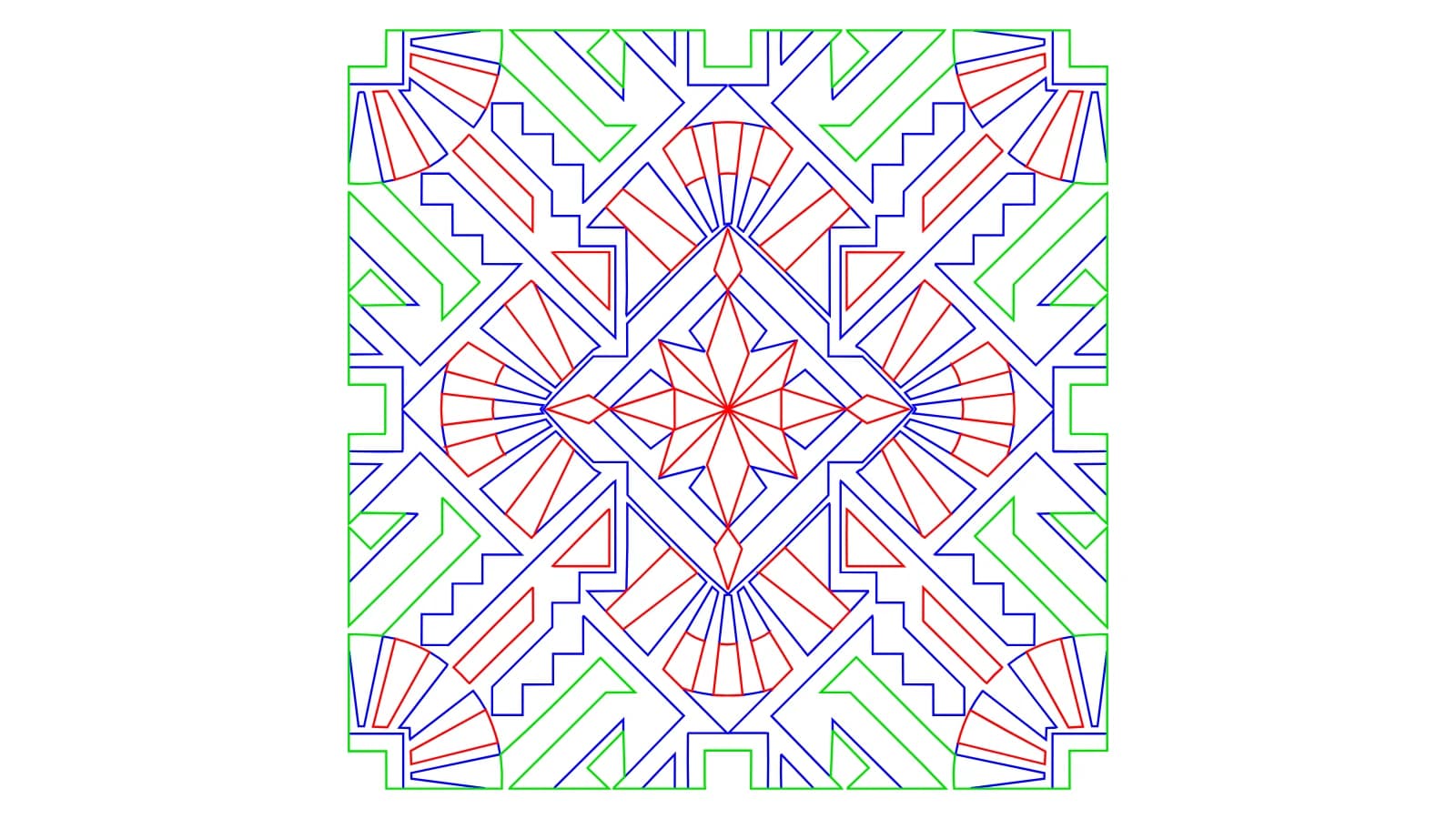
Contour results bring Outer cut, Inner cuts and Detail lines; Centerline results bring Centerlines; Tonal results come as All lines. SVGs from other programs get one layer per color when they use two or more colors (up to 12). On a pen plotter, each layer is drawn or skipped.
Settings for your machine
Choose GRBL laser, Marlin laser or pen plotter (servo or Z lift), the work area, the power scale (the S value for 100%, such as GRBL $30), dynamic (M4) or constant (M3) power on GRBL, air assist (M8), the travel speed and the curve precision. Engrave and Cut each have their power (0–100%), speed in mm/min and 1–20 passes. Your browser remembers your machine and your Engrave and Cut settings.
Free check before you pay
When you load an SVG, a free check shows its layers, its size and what will differ from the SVG, such as filled areas that are followed along their outline. No G-Code is made when the file cannot be read, has no lines, every layer is set to Skip, the design is larger than your work area, or the G-Code would be larger than 5 MB.
G-Code, preview and report
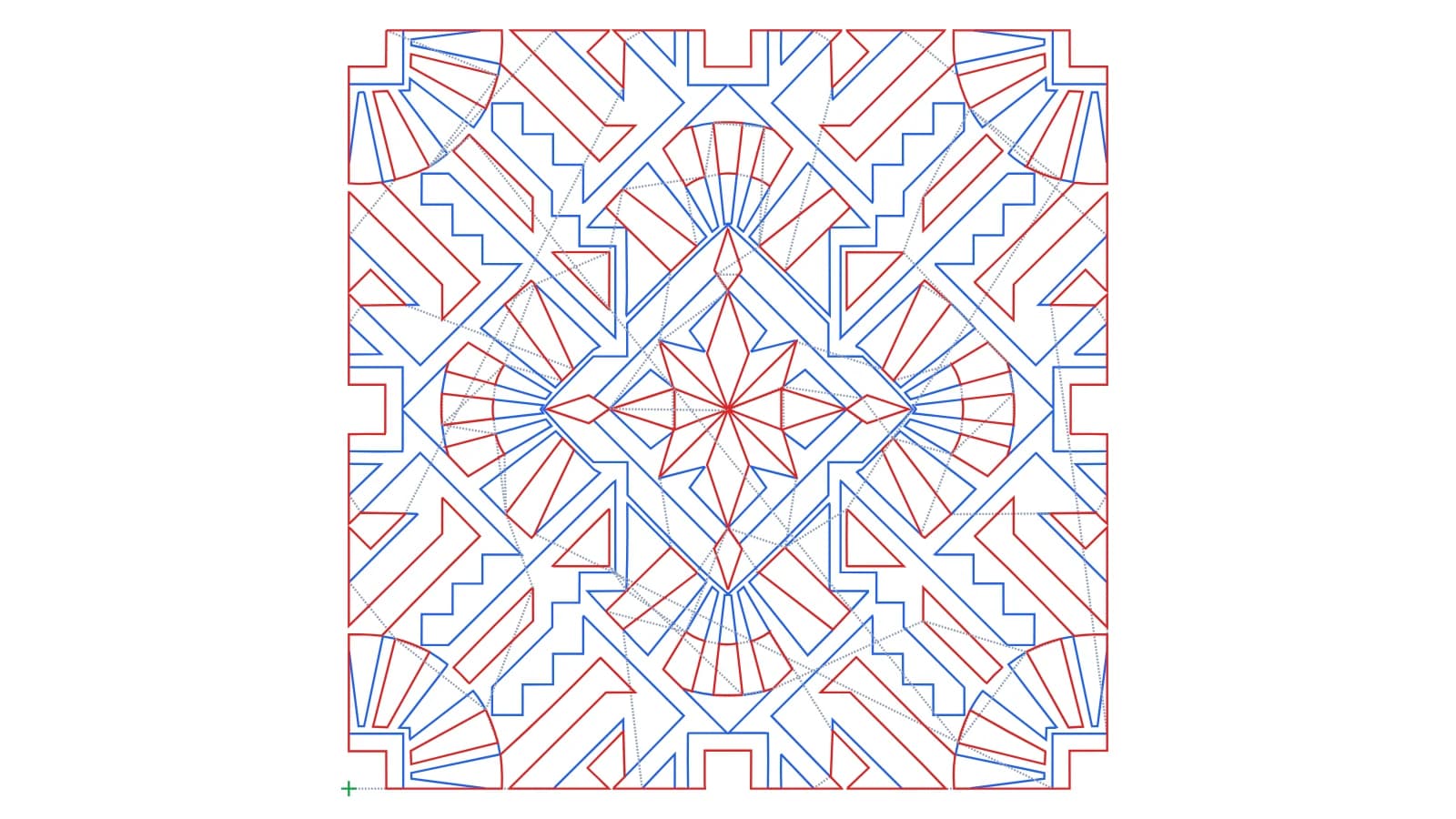
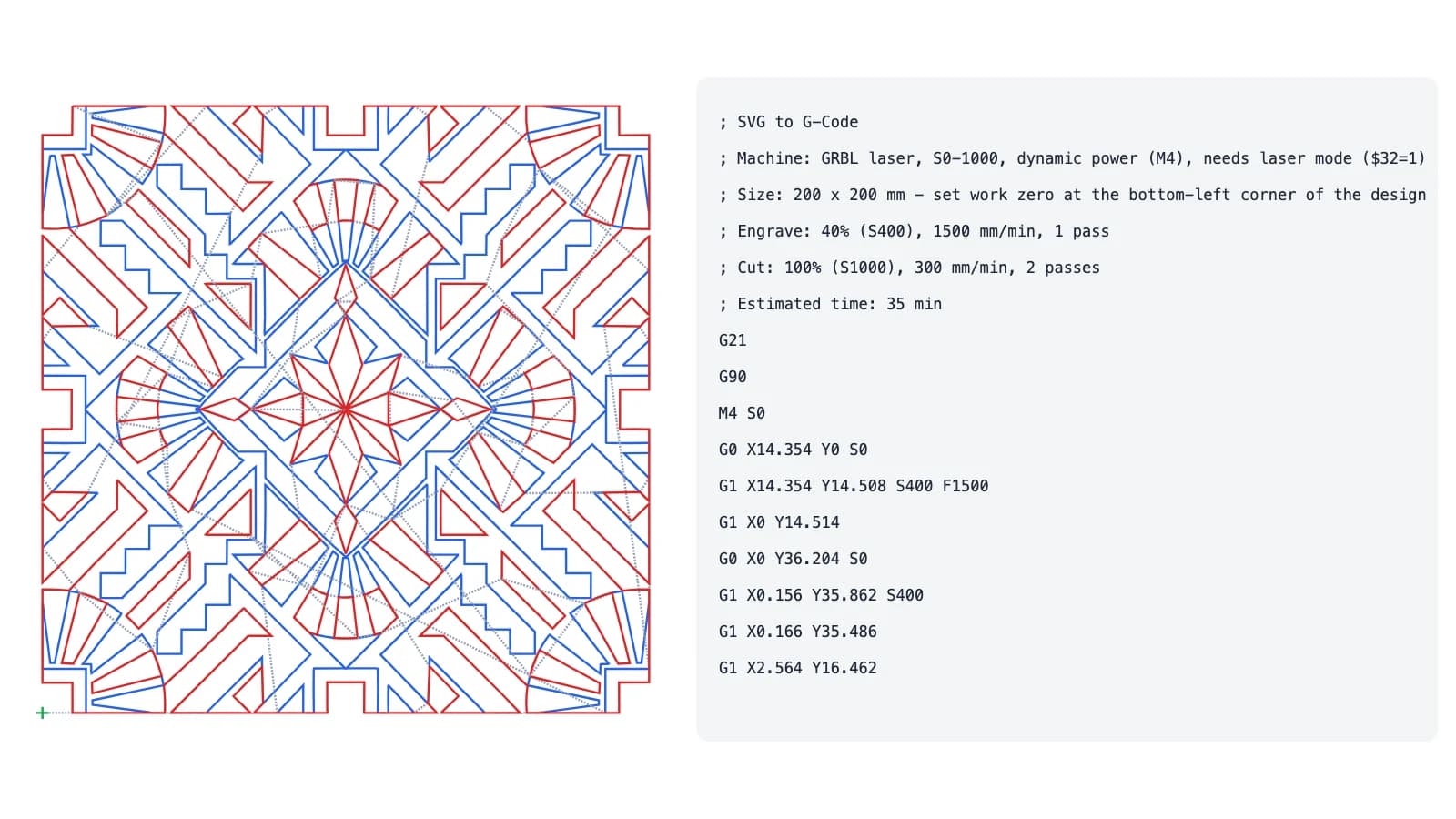
You download the G-Code with a short header (machine, size, work zero, settings, estimated time), a toolpath preview (cuts red, engraving blue, travel dashed, work zero green) and a JSON report. Check focus, material, power and speed on scrap before the real job.
Beta. Made for laser engraving, laser cutting and pen plotters. Not included: fill (hatch) engraving, CNC router toolpaths (pockets, tabs, Z depth, tool compensation), kerf compensation and G2/G3 arcs.
Why use SVG to G-Code from Laserlinez?
Input - any SVG
Use a Contour, Centerline or Tonal result (one click with “Make G-Code”) or any path-based SVG from your own design software.
Machine - GRBL, Marlin, pen
G-Code for GRBL lasers, Marlin lasers and pen plotters, set to the power scale and power mode of your controller.
Output - in the right order
Correct orientation, exact size, engraving before cutting and holes before outlines, with a toolpath preview to check.
Control - free check
See the layers, the size and any notes before you pay. A design larger than your work area is not turned into G-Code.
What you download
GCODE - Machine file
G0/G1 moves in mm. GRBL: one M4 (or M3) at the start, power set on the cutting moves and S0 on every travel move, with no M3/M5 between paths, so the machine does not stop (needs laser mode, $32=1). Marlin: M3/M5 around each path. Pen plotter: pen up and down by servo or Z lift.
JSON - Report
The layers with their operation, path count and length, the design size and work zero, the notes and the estimated time.
SVG - Toolpath preview
The job as the machine moves: cuts in red, engraving in blue, travel moves dashed and work zero as a green cross.
How it works
- 1
Load your SVG
Upload an SVG, or click “Make G-Code” on a Contour, Centerline or Tonal result. A free check reads its layers and its size.
- 2
Set size, layers and machine
Enter the width you need, set each layer to Engrave, Cut or Skip, set power, speed and passes for Engrave and Cut, and pick your machine and work zero.
- 3
Generate and download
Download the G-Code, the toolpath preview and the report. Set work zero on your machine where the file header says, and test on scrap first.

Ready to turn your SVG into G-Code?
Best use cases
From image to machine file
Trace a logo or graphic with Contour Vectorization, then click “Make G-Code”: Outer cut, Inner cuts and Detail lines become layers you can cut or engrave.
Line engraving
Engrave logos, ornaments, drawings and centerlines, with one power, speed and pass setting for all engraved layers.
Cut and engrave in one job
Draw cut lines in one color and engraving in another. Each color becomes a layer: set the cut color to Cut, and the laser engraves first and cuts last.
Pen plotting
Draw SVG lines with a pen plotter: pen up and down by servo or Z lift, with short travel moves between lines.
Product personalization
Names, labels and small gifts: convert text to paths, enter the exact width, and the design comes out at the same size every time.
Signs and plaques
Cut the outline and engrave the details of signs and plaques, with every hole cut before the outline.