Optimizing SVG Files for Efficient Pen Plotting
Unoptimized vector files waste hours in unnecessary pen movements. Strategic path organization and optimization techniques dramatically reduce plot time while improving output quality.
Understanding Plot Inefficiency
Raw SVG files exported from design software contain paths in arbitrary order—sequence of creation, layer organization, or random. Plotter executes paths in file order causing excessive pen travel. Example: plotting line at top, jumping to bottom, returning to top for adjacent line. Pen spends more time traveling than drawing.
Pen lifts are expensive: raising pen, moving to new position, lowering pen takes time and introduces registration risk. Unoptimized file may lift pen thousands of times unnecessarily. Each lift: ~0.1-0.3 seconds plus travel time. 1000 unnecessary lifts = 2-5 minutes wasted minimum, often much more with long travel distances.
Stroke direction matters: plotter can traverse path forward or backward. Unoptimized plotting may finish path, lift pen, travel far, when reversing previous path and continuing would eliminate lift. Smart optimization detects these opportunities and chains paths.
Duplicate geometry common in design files: hidden duplicates, grouped originals + copies, overlapping identical paths. Plotter draws everything causing wasted time and potentially darker lines from double-plotting. Critical to detect and remove duplicates before plotting.
Layer organization in design software rarely optimizes for plot efficiency. Designers organize by visual logic (foreground/background) or editing convenience, not pen movement. Plotting layers as-is wastes time. Re-organization by spatial proximity reduces travel.
Path Sorting Strategies
Nearest-neighbor sorting: after completing path, move to nearest undrawn path regardless of original order. Greedy algorithm—not globally optimal but dramatically better than unsorted. Reduces pen travel by 60-80% typically. Easiest optimization to implement, available in most plotter software.
Layer-based sorting: plot all paths in one area before moving to another. Divide drawing into grid, sort paths by grid cell. More sophisticated than nearest-neighbor, accounts for clustering. Prevents cross-page zigzag patterns. Useful for large-format plots where travel distance significant relative to drawing size.
Color-based sorting for multi-color plots: group all paths by pen color, plot all instances of one color before changing pens. Minimizes pen changes (time-consuming manual process on many plotters). Trade-off: may increase total pen travel but reduces user intervention. Calculate time saved in pen changes vs time lost in travel.
Inside-out or outside-in: for nested shapes (circles within circles, concentric patterns), plot from center outward or edge inward. Reduces pen lifts when traveling between nested elements. Depends on design—choose direction that minimizes total travel given layout.
Toolpath optimization algorithms: traveling salesman problem solvers find near-optimal path order. Sophisticated optimization reducing travel 70-90% compared to unsorted. Computationally intensive for large files—may take minutes to optimize thousands of paths but saves hours in plotting. Worth investment for repeated plots or very long plots.
Optimization Workflow
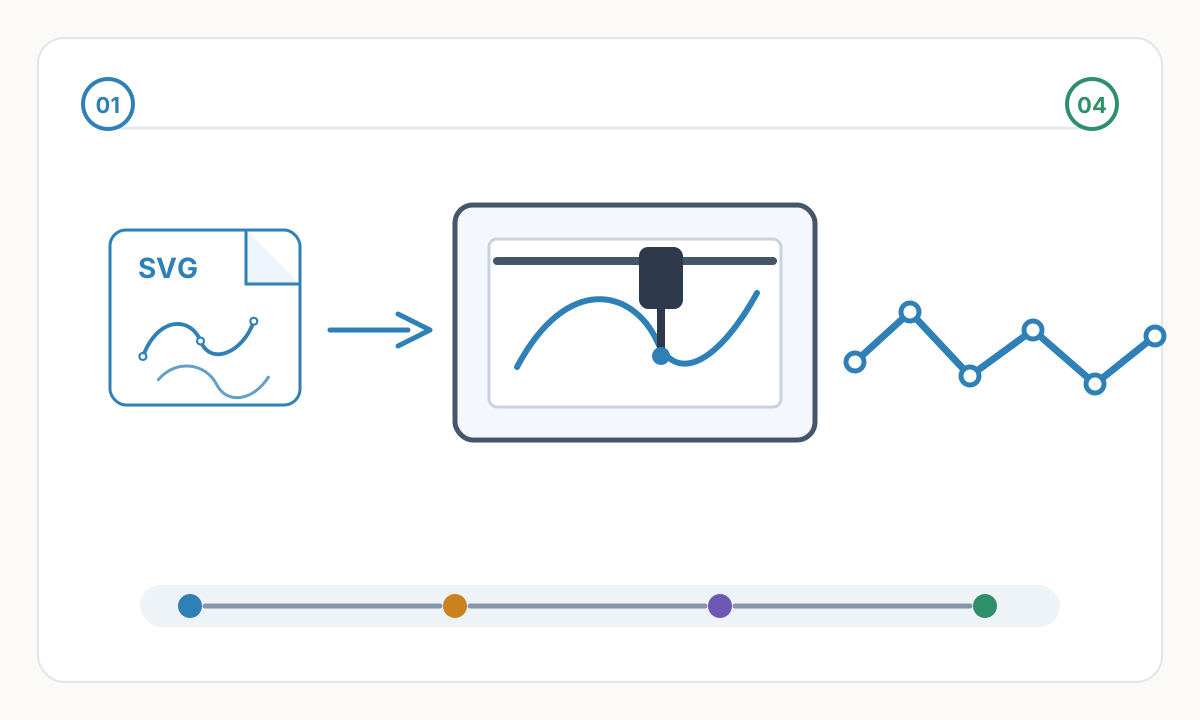
- 1
Clean the SVG File
Remove hidden layers, delete construction guides not intended for plotting, ungroup everything to individual paths, convert strokes to paths if needed, remove fills (plotters draw strokes only). Use vector software's 'simplify path' to reduce unnecessary anchor points—fewer points = faster processing and smoother plotting. Verify no duplicate paths (select all, check count, undo and manually deselect obvious paths, remaining selection is duplicates).
- 2
Organize by Plot Strategy
Single color: sort by spatial proximity using optimization software. Multi-color: separate paths by color into layers, sort each color layer independently, determine plot order (background to foreground or by pen change frequency). Complex designs: manually organize critical sections, auto-optimize remainder. Always preserve aesthetic intent—don't sacrifice design quality for marginal time savings.
- 3
Apply Optimization Software
Tools: vpype (Python command-line tool, powerful), AxiDraw software (built-in optimization), Inkscape with plotter plugins, custom scripts. Run optimization: nearest-neighbor as baseline, try advanced algorithms if time permits, preview optimized path order (many tools visualize), estimate time savings (compare path length metrics). Test on portion of design before full plot.
- 4
Verify and Test Plot
Check optimization didn't alter paths visually (zoom in, compare before/after), ensure all paths present (count before/after optimization), test plot small section to verify pen doesn't skip due to speed changes from optimization, measure actual time savings on test plot, iterate if results unsatisfactory. Document optimization settings for similar future projects.
Advanced Optimization Techniques
Path merging: when multiple line segments form continuous path with no branches, merge into single path eliminating lifts. Example: hatching pattern may export as individual lines—merging into continuous zigzag eliminates lifts between each line. Some software does this automatically, others require manual intervention or scripting.
Stroke consolidation: combine adjacent parallel strokes into single path when possible. Thick appearance from closely-spaced thin lines can sometimes become single thicker path. Trade-off: changes rendering slightly, reduces plot time significantly. Only when visual difference acceptable.
Strategic path breaking: counterintuitively, sometimes breaking paths reduces total time. Long path crossing entire drawing may be faster split into segments plotted with local clusters. Rare optimization but useful for specific layouts (grid patterns, scattered elements).
Color sequence optimization: analyze multi-color design for pen change frequency. If design uses 5 colors but one color only in small area, plot that area last with other colors despite spatial inefficiency—saves pen change time. Balance spatial and color optimization based on design specifics and plotter pen change speed.
Adaptive detail: vary path density based on viewing distance. Areas seen up-close get full detail, distant areas simplified. Reduces path count, faster plotting, imperceptible quality loss. Requires manual judgment—automate carefully. Most applicable to large-format work where viewing distance varies across piece.
Software Tools for Optimization
vpype (open-source Python): command-line tool, extremely powerful. Commands: linemerge (joins collinear segments), linesort (optimizes path order), reloop (optimizes loop direction), crop/filter/transform operations. Steep learning curve but unmatched control. Essential for serious plotter users. Install via pip, use in scripts for batch processing.
Inkscape with AxiDraw extension: visual interface, good for beginners. Built-in path sorting, preview plot order, manual override options. Limitations: less sophisticated than vpype, slower on large files. Advantage: visual feedback, easier learning curve. Suitable for most users.
AxiDraw software: if using AxiDraw plotter, included software has optimization. Automatic nearest-neighbor sorting, layer management, path direction control. Optimizes for AxiDraw specifics. Works well but tied to specific hardware.
Custom scripts: Python with svgpathtools or svg.path libraries. Write custom optimization for unique needs. Examples: domain-specific path ordering, integration with design automation, batch optimization pipelines. Requires programming knowledge but ultimate flexibility.
Commercial plotters: some high-end plotters (HP, Roland) include optimization in driver software. Varies by model—check documentation. Generally less flexible than dedicated tools but convenient if available.
Verification checklist before production
- Confirm final size, units and orientation in the destination software
- Inspect the file for hidden, duplicate, or irrelevant geometry
- Run a small material or test engraving before full production
- Save the approved settings, source file and exported production file together
Comments
Loading comments...